
Sharing SOC 2 audit assets with auditors using Google Drive
Your compliance repository is where the real work happens. Google Drive is the read-only mirror where auditors browse evidence, policies, and navigation documents without touching your source of truth.
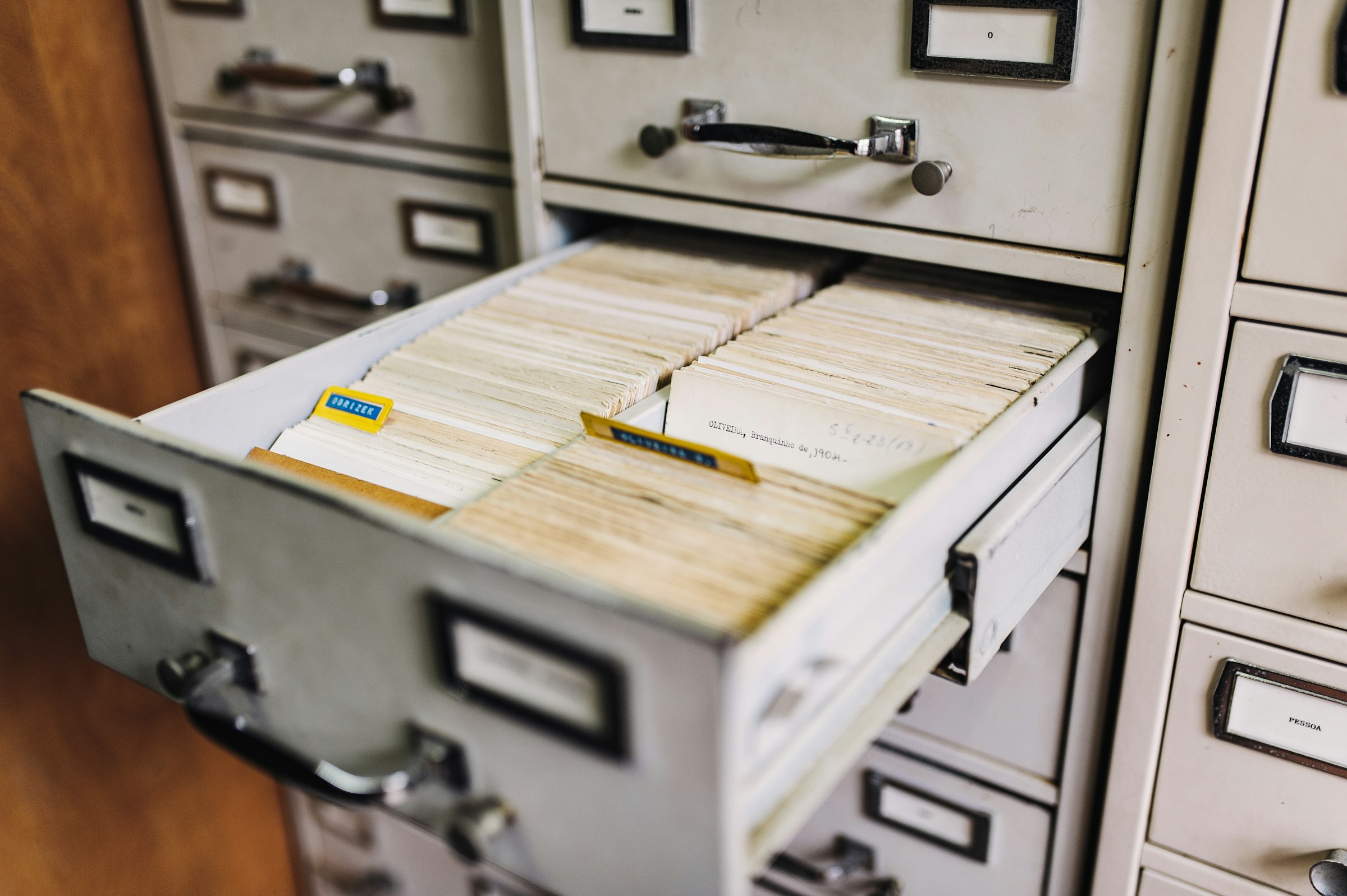
The repository is source of truth. Drive is the read-only mirror for auditors. That separation is the entire architecture.
Most teams get this backwards. They dump everything into a shared folder, invite the auditors, and hope for the best. Then someone accidentally edits a policy. Or moves a file. Or deletes an evidence folder because the name looked like a duplicate. I have watched this happen.
At Tallyfy, our SOC 2 Type 2 compliance runs from a Git repository. Every policy, control definition, risk entry, and piece of evidence lives in version-controlled files. But auditors don’t want to clone a repo. They want a folder they can click through. So we built a one-way sync to a Google Shared Drive, designed with auditors in mind.
The full story of how we replaced our SOC 2 compliance platform covers the broader architecture. This post focuses specifically on the Drive side: folder structure, sync mechanics, and the navigation documents that keep auditors from getting lost.
Why auditors need a different interface than your team
Your engineering team works in code editors, terminals, and YAML files. Auditors work in PDF viewers and folder browsers. This is not a judgment call. It is a workflow reality.
When a CPA firm begins a SOC 2 Type 2 examination, they need to inspect evidence across an audit period, typically 6 to 12 months. CPA firm guidance on audit preparation notes that the most labor-intensive phase involves gathering and organizing evidence, often lasting several weeks. That timeline shrinks dramatically when auditors can browse a well-structured Drive instead of requesting individual files over email.
Auditors don’t need write access. They don’t need version history. They don’t need to understand your branching strategy. They need to open a folder, find the evidence for control 47, confirm it covers the audit period, and move on.
Why a Shared Drive instead of a regular folder? Google’s documentation confirms that Shared Drive files belong to the organization, not any individual. If someone leaves, auditor access doesn’t break. Shared Drives also let you restrict external members to view-only. Which is exactly what auditors should have.
The folder structure that auditors expect
Auditors think in controls. Not in sprints, not in teams, not in product areas. Every SOC 2 engagement revolves around the Trust Services Criteria defined by the AICPA, and auditors want evidence organized by control.
Here is the folder structure we sync to Drive:
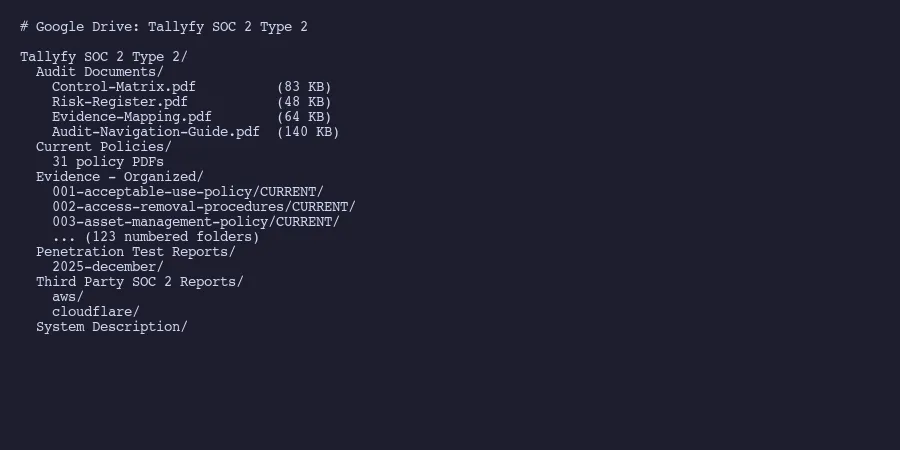
Tallyfy SOC 2 Type 2/
  Audit Documents/
    Control-Matrix.pdf
    Risk-Register.pdf
    Evidence-Mapping.pdf
    Audit-Navigation-Guide.pdf
  Current Policies/
    31 policy PDFs
  Evidence - Organized/
    001-acceptable-use-policy/CURRENT/
    002-access-removal-procedures/CURRENT/
    003-asset-management-policy/CURRENT/
    ... (123 numbered folders)
  Penetration Test Reports/
  Third Party SOC 2 Reports/
    aws/
    cloudflare/
  System Description/
Every evidence folder has a CURRENT subfolder and an ARCHIVE subfolder. Current holds the active evidence for the audit period. Archive holds superseded versions. Auditors learn this pattern once and then know exactly where to look in every folder.
The numbered prefix matters. It gives each control a stable, sortable identifier. When your auditor says “show me evidence for control 42,” you both know they mean folder 042. No ambiguity. No searching.
The Third Party SOC 2 Reports folder deserves mention. Your auditors will ask for SOC 2 reports from your critical subservice organizations. Linford & Company’s guidance on sharing SOC reports explains that distribution must stay within the entities specified in the report’s limited distribution clause. A Shared Drive with restricted access satisfies this requirement cleanly. You’re not emailing sensitive reports around. You’re not posting them on a website. They sit in a controlled folder with auditable access.
Syncing from repository to Drive
The sync is one-directional. Repository to Drive. Never the reverse.
A Python script handles this using a Google Cloud service account. Not a personal OAuth token. Not someone’s browser session. A service account is a programmatic identity with its own email address, something like [email protected]. You add it as a Shared Drive member with content manager access.
Google’s best practices for service accounts recommends choosing the minimum role needed. Content manager can create and update files but can’t change sharing settings or delete the Drive itself.
The sync script does four things:
Mirrors the folder structure. It walks the repository’s organized evidence directory and creates matching folders in Drive, with duplicate detection so running it twice doesn’t create duplicates.
Uploads files to the correct locations. Policies go to Current Policies. Evidence screenshots go to their numbered control folders. Penetration test reports go to their folder. Each file lands where an auditor expects it.
Generates navigation PDFs. Four auto-generated documents that serve as maps for the auditor. More on these below.
Supports Shared Drives explicitly. Every API call includes supportsAllDrives=True because the default Drive API ignores Shared Drives. Miss this flag and your script silently fails. Google’s Drive API docs mention this, but it trips up most first implementations.
The script runs on demand, not on a schedule. You sync before an audit engagement starts, and again if you update evidence mid-audit. There is no reason to keep Drive in perfect real-time sync with the repository. Auditors work on a fixed period, and the evidence for that period doesn’t change.
Navigation documents that save auditor time
This is where most DIY compliance setups fall short. They get the files into a folder and call it done. But 123 numbered folders with hundreds of files is not self-explanatory. Auditors don’t know your internal naming conventions.
We auto-generate four PDF documents that sit in the Audit Documents folder at the top of the Drive:
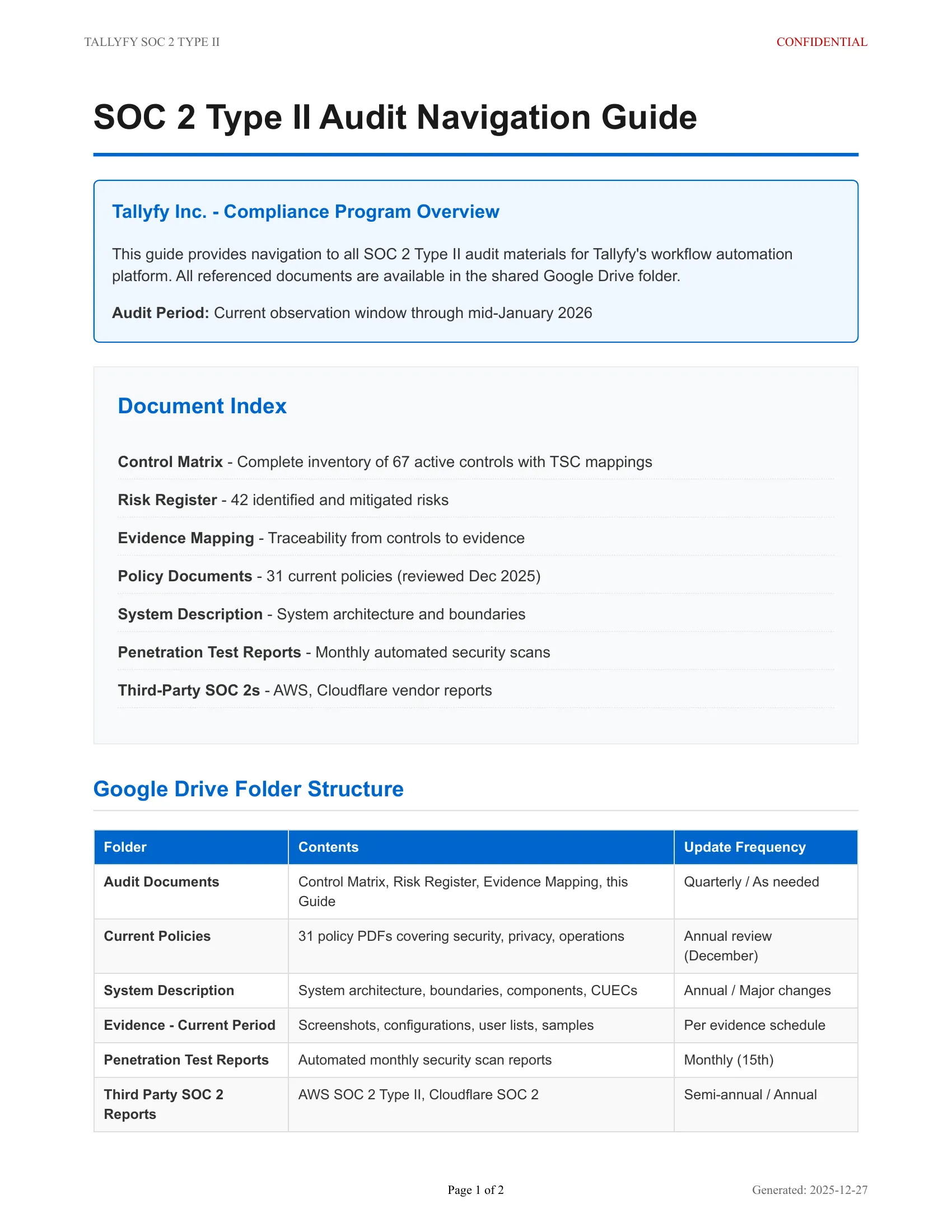
Control Matrix. All 67 controls with descriptions, Trust Services Criteria mappings, control owners, and status. Understanding what goes in a SOC 2 report helps you structure this document. This is the document auditors open first. audit preparation guidance from SANS emphasizes that organized, mapped documentation lets auditors begin testing immediately rather than spending days deciphering your control environment.
Risk Register. All 42 identified risks with impact ratings, likelihood scores, and mitigations. Auditors use this to verify that controls address identified risks.
Evidence Mapping. This is the bridge document. It contains 151 relationships linking specific controls to specific evidence items. Control 14 requires evidence items 14a, 14b, and 14c, found in folder 014. The auditor never has to guess which folder satisfies which control.
Audit Navigation Guide. A plain-language document explaining the Drive structure, naming conventions, and what CURRENT vs ARCHIVE means. Think of it as a README for auditors. This single document eliminates roughly half the “where do I find X?” emails that slow down an audit.
These four documents are generated from the same YAML data that defines the controls in the repository. They’re not manually maintained Word documents that drift out of sync. Change a control in the repository, regenerate the PDFs, sync to Drive. The auditor always sees the current state.
When auditors have questions
Auditors will comment. They will flag evidence gaps. They will ask for clarification on specific controls. The question is how you handle that communication without breaking the read-only architecture.
The answer is simple: don’t use Drive for communication. Use whatever channel your CPA firm prefers. Email, a shared tracker, their own portal. When an auditor identifies a gap, you fix it in the repository, regenerate any affected documents, and sync again.
This discipline matters. If auditors add comments directly to Drive files, you now have compliance-relevant communication scattered across two systems. If someone edits a file in Drive instead of the repository, you have divergence that will bite you next audit cycle.
Some auditors will push back. They want to annotate directly. The compromise: let them create a separate “Auditor Notes” folder in the Shared Drive for their working documents. That folder is theirs. It doesn’t sync back. It doesn’t affect your evidence.
The real test is the second year. First-year audits always involve scrambling. But when the second audit arrives and your auditor opens the same Shared Drive, finds the same structure, and sees updated evidence already where they expect it, the investment pays off. The audit goes faster. Evidence requests shrink. And the only tools you needed were a folder structure, a sync script, and four well-designed PDFs.
About the Author
Amit Kothari is an experienced consultant, advisor, coach, and educator specializing in AI and operations for executives and their companies. With 25+ years of experience and as the founder of Tallyfy (raised $3.6m), he helps mid-size companies identify, plan, and implement practical AI solutions that actually work. Originally British and now based in St. Louis, MO, Amit combines deep technical expertise with real-world business understanding.
Disclaimer: The content in this article represents personal opinions based on extensive research and practical experience. While every effort has been made to ensure accuracy through data analysis and source verification, this should not be considered professional advice. Always consult with qualified professionals for decisions specific to your situation.