
Key takeaways
- Cloud routines are the wrong tool for local jobs - they run from a fresh clone and never see your machine, files, or keychain.
- Cron and Desktop are not the only local options - launchd is the better pick on a Mac, and the in-session scheduler is a fourth.
- launchd runs as you, so your keychain is unlocked and git auth just works, where root cron fails silently.
- A real LaunchAgent below pulls every repo under my GitHub folder every three hours, on minute seventeen.
I keep a folder of git repos on my Mac and I want them fast-forwarded every few hours, quietly, without me thinking about it. The obvious modern instinct is to reach for a Claude Code cloud routine. That instinct is wrong here, and it is worth knowing why before you waste an afternoon on it.
So is Claude Desktop or a cron job the only way to run Claude locally on a schedule? No. There are four local options and one cloud one, and they are not interchangeable. The in-session scheduler dies with your session. A Desktop routine needs the app open. A cloud routine never touches your machine at all. And then there is launchd, which is the one you actually want for a job like this. Let me walk through why, and then hand you a working setup.
Why the cloud cannot do this one
A cloud routine runs on Anthropic infrastructure from a fresh clone of your repository. Read that sentence again, because it is the whole problem. The routine does not see your laptop. It checks out your repo, as committed, in an ephemeral container somewhere, does its thing, and tears down. The routines documentation is clear that the work happens well away from your machine.
For a job whose entire purpose is to maintain the working copies sitting on my own disk, that is a dead end. The cloud container has no view of my local clones, no access to my macOS keychain where my git credentials live, and no way to run a tool I installed by hand. It cannot fast-forward a repo it cannot see, using credentials it cannot reach. The cloud is brilliant for work that lives in the repository and only the repository: a nightly dependency audit, a morning briefing, a scheduled review. It is useless for keeping your own machine tidy. That is not a limitation to work around. It is a wall, and the trick is to stop walking into it and pick a local tool instead.
Your local options, ranked
Four ways to run Claude Code work on a schedule without leaving your machine, from least to most durable.
The in-session scheduler is /loop. It reruns a prompt on an interval, but only while your session is open, and it dies the moment you close the terminal. I wrote about getting real work out of /loop separately. It is for jobs you watch, not jobs you leave, so it is out for anything unattended.
A Claude Desktop local routine is the next step up. In the Desktop app you can create a routine and choose Local rather than Remote, and it runs on your Mac with access to your files. The catch, per the Desktop scheduled tasks docs, is that it only fires while the app is open and the machine is awake; sleep through a scheduled time and that run is skipped, with one catch-up on wake. Fine if you keep the app running. Fragile if you do not.
An OS cron job calling the headless CLI is the classic answer, and it works, but it has a sharp edge on macOS that I will come to. A launchd LaunchAgent is the same idea done properly: it runs as your logged-in user, so it inherits your unlocked keychain, it survives reboots, and it copes with sleep and wake. For a job that touches local files and needs git credentials, launchd is the pick. The decision, start to finish:

One billing note before the setup, because it changes the maths. Running the headless claude -p command draws on your Claude subscription, not full API rates, and since 15 June 2026 that usage no longer counts against your plan limits at all, drawing on a separate monthly Agent SDK credit instead. So a tight local schedule no longer eats your interactive quota. That said, for a pure mechanical job like pulling repos, the cheapest thing is to skip claude -p and schedule the plain script directly. Save claude -p for when you actually want Claude to reason about the result.
Setting up pull-repos with launchd
Here is the real thing, running on my Mac right now. I have a pull-repos script that fast-forwards every git repo under a folder, pull-only, never touching uncommitted work. I want it every three hours. This LaunchAgent does exactly that. Drop it at ~/Library/LaunchAgents/com.amitk.claude.pull-repos.plist, swapping in your own username and paths:
<?xml version="1.0" encoding="UTF-8"?>
<!DOCTYPE plist PUBLIC "-//Apple//DTD PLIST 1.0//EN" "http://www.apple.com/DTDs/PropertyList-1.0.dtd">
<plist version="1.0">
<dict>
    <key>Label</key>
    <string>com.amitk.claude.pull-repos</string>
    <key>ProgramArguments</key>
    <array>
        <string>/Users/you/.claude/skills/pull-repos/scripts/pull_repos.sh</string>
        <string>/Users/you/GitHub</string>
    </array>
    <key>WorkingDirectory</key>
    <string>/Users/you/GitHub</string>
    <key>EnvironmentVariables</key>
    <dict>
        <key>PATH</key>
        <string>/opt/homebrew/bin:/usr/local/bin:/usr/bin:/bin:/usr/sbin:/sbin</string>
        <key>HOME</key>
        <string>/Users/you</string>
    </dict>
    <key>StartCalendarInterval</key>
    <array>
        <dict><key>Hour</key><integer>0</integer><key>Minute</key><integer>17</integer></dict>
        <dict><key>Hour</key><integer>3</integer><key>Minute</key><integer>17</integer></dict>
        <dict><key>Hour</key><integer>6</integer><key>Minute</key><integer>17</integer></dict>
        <dict><key>Hour</key><integer>9</integer><key>Minute</key><integer>17</integer></dict>
        <dict><key>Hour</key><integer>12</integer><key>Minute</key><integer>17</integer></dict>
        <dict><key>Hour</key><integer>15</integer><key>Minute</key><integer>17</integer></dict>
        <dict><key>Hour</key><integer>18</integer><key>Minute</key><integer>17</integer></dict>
        <dict><key>Hour</key><integer>21</integer><key>Minute</key><integer>17</integer></dict>
    </array>
    <key>StandardOutPath</key>
    <string>/Users/you/GitHub/temporary/pull-repos/launchd.log</string>
    <key>StandardErrorPath</key>
    <string>/Users/you/GitHub/temporary/pull-repos/launchd.log</string>
    <key>ProcessType</key>
    <string>Background</string>
</dict>
</plist>
Two details earn their place. The PATH is set explicitly because launchd hands a job a near-empty environment, so git and friends will not be found unless you say where they live. And the schedule runs at minute seventeen, never on the hour, for the same reason I mentioned in the /loop piece: on-the-hour is where every other scheduled job in the world piles up. Load it and fire one run to test, using the modern bootstrap rather than the old load:
launchctl bootstrap gui/$(id -u) ~/Library/LaunchAgents/com.amitk.claude.pull-repos.plist
launchctl kickstart -k gui/$(id -u)/com.amitk.claude.pull-repos
That first run went across every repo I have. Here is the actual result, with the repo names left out on purpose:
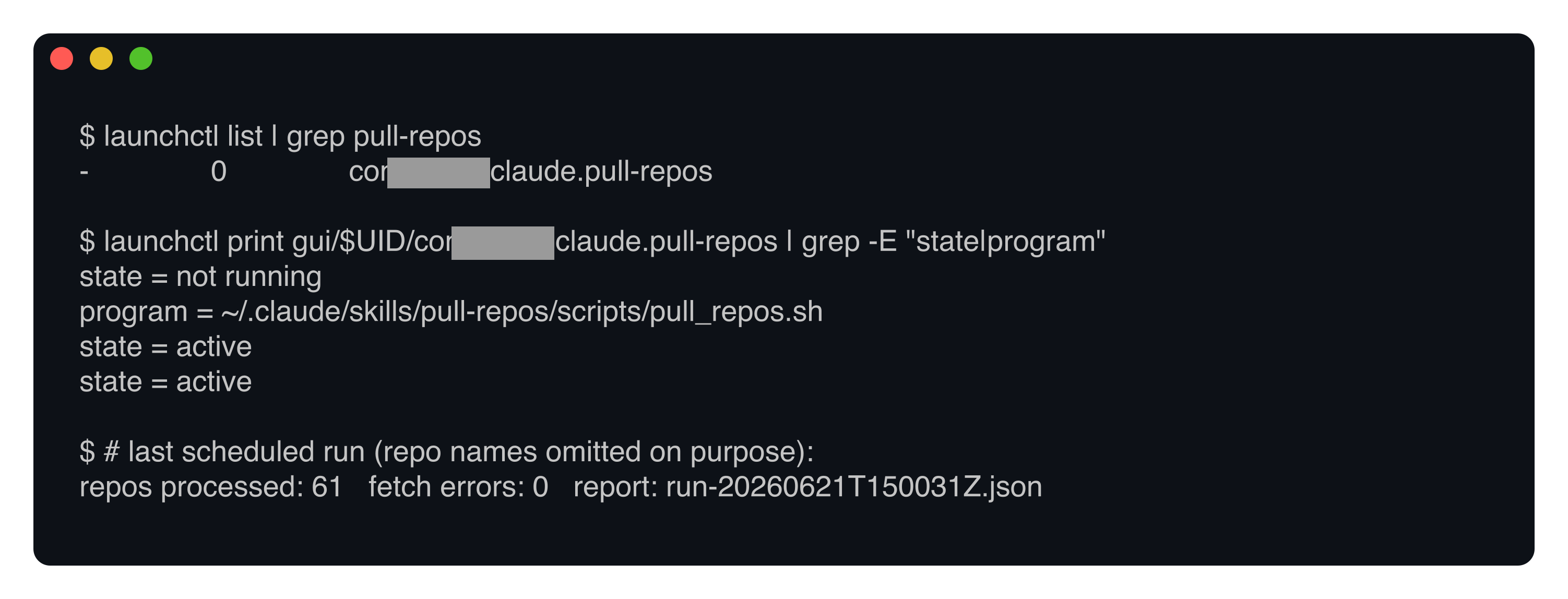
Sixty-one repos, zero errors, one report file, and the job sitting loaded and waiting for its next slot. From here it just runs, every three hours, whether I remember it or not. That is the difference between a job that depends on me being at the keyboard and one that does not.
The gotchas that will bite you
The reason I steer people to launchd over a plain cron line is one specific, nasty failure mode. Git auth over HTTPS on a Mac reads from the keychain, and the keychain is only unlocked inside a logged-in session. A root cron job does not have that. So a cron-driven pull runs at 3am, the keychain is locked, every private repo fails authentication, and because a good puller fails fast rather than hanging, it reports the failures and moves on, quietly, with nobody watching. You find out days later that half your repos went stale. A user LaunchAgent sidesteps the whole thing by running as you, with your keychain already open.
The other two are smaller but real. launchd gives a job almost no environment, so set PATH in the plist or your script will not find git, jq, or anything from Homebrew. And the shell is not your interactive shell, so do not assume your ~/.zshrc ran; put what you need in the plist or the script itself. None of these announce themselves. They show up as a job that “ran” with nothing to show for it, which is the worst kind of bug.
One failure that looks like a scheduling problem but is not: if Claude Code itself cannot connect, because you are behind a corporate proxy or a TLS-inspecting VPN, no LaunchAgent will save you. That is a certificate problem, not a timing one, and I worked through the whole fix in Claude Code behind a TLS-inspecting proxy. Sort the connection first, then schedule.
Related reading
Claude Code loop is for the work you watch covers the in-session option. How Claude Code scheduled jobs really work compares local against cloud, and running Claude Code as non-interactive prompts is the headless command underneath all of this.
So no, Desktop and cron are not the only way, and cron is not even the best way. For a job that has to touch your real machine on a timer, a user LaunchAgent is the quiet, durable answer: it runs as you, it survives a reboot, it keeps your keychain in reach, and it asks nothing of you once it is set. Reserve the cloud for work that lives in the repository, and keep the work that lives on your Mac where it belongs.